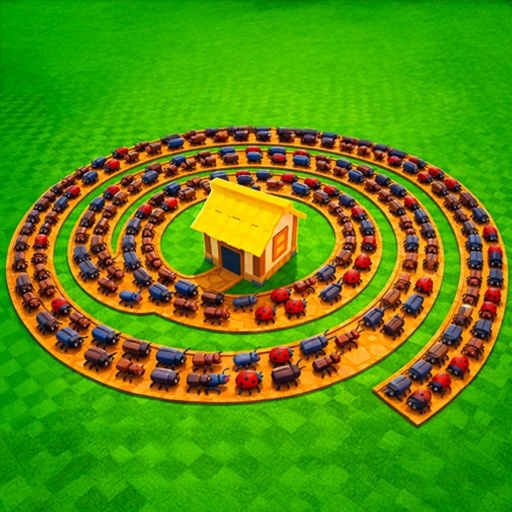
Stop The Bugs Controls Reference
Last verified: July 2026
Mastering controls in Stop The Bugs improves both turret placement precision and sword cleanup speed during leak emergencies. Super Defence built the game on standard Roblox tower defense conventions with up to 6 players sharing one townhall. This reference covers PC keyboard and mouse controls, mobile touch controls, and HUD navigation for turret shops, townhall upgrades, and weapon crates — so you spend less time fumbling menus and more time executing strategies from our beginner guide.
PC Controls (Keyboard and Mouse)
Movement: W/A/S/D or arrow keys move your character along the map. Walk to bug path segments when placing turrets — placement nodes highlight when you are in range. Camera: Hold right-click and drag to rotate the camera. Scroll wheel zooms in and out for precise chokepoint evaluation before confirming turret placement. Combat: Left-click swings your equipped sword at bugs in melee range. Target stragglers leaking past turrets during and between waves. Interaction: Click UI buttons for turret shop, townhall upgrade menu, and weapon crate vendor. Roblox default key E may interact with proximity objects if Super Defence enabled keybinds — test near shop NPCs and townhall terminals.
Mobile Controls (Touch)
Movement: Use the virtual joystick (typically bottom-left) to walk your character. Camera: Drag with one finger on empty screen space to rotate view. Pinch to zoom for placement preview. Combat: Tap bugs to attack with your sword, or use the attack button if displayed on the HUD. Menus: Tap icons for shop, upgrades, and crates. Mobile HUD may collapse secondary buttons behind a menu icon — expand the sidebar if you cannot find turret or townhall options immediately.
Turret Placement Controls
Open the turret shop from the HUD, select a turret type from those unlocked at your current townhall level, then click or tap a valid placement node along bug paths. Range preview circles appear before confirmation — always verify overlap with existing turrets per our placement guide. To upgrade an existing turret, click the turret directly or select it from a management menu if available. Cancel placement by pressing Escape on PC or the back button on mobile before confirming.
Townhall and Upgrade Menus
Approach the townhall structure or click the townhall icon on the HUD to open upgrade options. Confirm townhall level purchases with the displayed cash cost. The same interaction pattern applies to turret tier upgrades when clicking placed turrets. If menus fail to open, verify you are not mid-wave during a placement lockout — some Roblox TD games restrict upgrades during active waves.
Weapon Crate Controls
Open the weapon shop or crate vendor from the HUD near your townhall. Select Basic, Standard, or Premium crate tiers based on your unlock level. Confirm purchase to trigger the roll animation. New swords equip automatically in most cases — check the weapons inventory if your blade does not visually update. See our crates guide for which tier to open at each progression stage.
Camera Tips for Better Placement
Zoom out during wave breaks to survey your entire layout and identify coverage gaps before the next wave spawns. Rotate camera to view path segments from multiple angles — a chokepoint obvious from one angle may look open from another. On mobile, disable auto-rotate if the camera shifts during placement, a common frustration in Roblox TD games with dense HUDs.
Co-op Communication
Roblox in-game chat (press / or click chat icon) lets you coordinate turret assignments with up to five other players. Call out which path segment you are covering, when you are purchasing townhall upgrades, and when leaks need sword cleanup. Efficient communication reduces duplicate turret coverage and prevents uncovered leak paths.
Roblox Platform Controls
Standard Roblox shortcuts apply: Shift Lock (Shift on PC) toggles camera-behind-character mode useful for sword combat. Tab opens player list in co-op lobbies. Escape opens the Roblox menu — avoid opening mid-wave unless pausing is supported. Reset character if stuck in terrain, though this may not be available during active defense rounds.
Related Pages
- How to play Stop The Bugs — first session walkthrough
- Turret placement guide — where to click for best coverage
- Place turrets tutorial — step-by-step layout building
- Stop The Bugs review — gameplay overview
Frequently Asked Questions
How do I place turrets in Stop The Bugs? +
Open the turret shop from the HUD, select a turret type, then click a valid placement node along bug paths. Preview range circles before confirming.
What are the PC movement controls? +
Use W/A/S/D or arrow keys to move. Right-click drag rotates camera. Scroll wheel zooms.
How do I attack bugs with my sword? +
Left-click bugs on PC or tap them on mobile when in melee range. Swords are for manual cleanup of leaks.
Can I upgrade during active waves? +
Some Roblox TD games restrict upgrades mid-wave. Try during wave breaks if placement or upgrade menus are locked.
How do mobile controls differ from PC? +
Mobile uses a virtual joystick for movement, tap-to-attack, and pinch-to-zoom. Menus may hide behind a collapsed HUD icon.